Просмотр новости
Найдите то, что Вас интересует
 Спутники
 РН
РН SpaceX
 Роскосмос
 NASA
NASA
СпутникиРНSpaceXРоскосмосNASAAsk five people how they prefer to pay for things online and you will get five different answers. One taps Apple Pay without thinking. One only buys through PayPal because the dispute process saved her last year. One still mails a check to her professional association every January because that is how the association has (more...)
Ask five people how they prefer to pay for things online and you will get five different answers. One taps Apple Pay without thinking. One only buys through PayPal because the dispute process saved her last year. One still mails a check to her professional association every January because that is how the association has always done it. And one will not enter a credit card number into a site she has never heard of, full stop.
That mix is your prospective member list. If your checkout only speaks one of those languages, the others go shop somewhere else.
Paid Memberships Pro (PMPro) lets you offer credit card, PayPal, and Pay by Check side by side on the same checkout page. This post covers why it matters, how to set up each method, what the combined checkout looks like to a member, and a few things to know before you flip everything on.
If you have not looked at cart abandonment averages recently, they can be shocking. The Baymard Institute puts the average online cart abandonment rate at around 70% across industries. Most of those abandonments are not because the product is wrong. It’s due to the friction at checkout. In Baymard’s research on the reasons people gave for abandoning a checkout they had already started, “there were not enough payment methods” or “I did not trust the site with my credit card information” appears in roughly one out of ten responses.
One in ten is not a rounding error. On a page that converts at 5%, recovering even a slice of those drop-offs is the difference between a slow month and a good one.
A few patterns are worth knowing about:
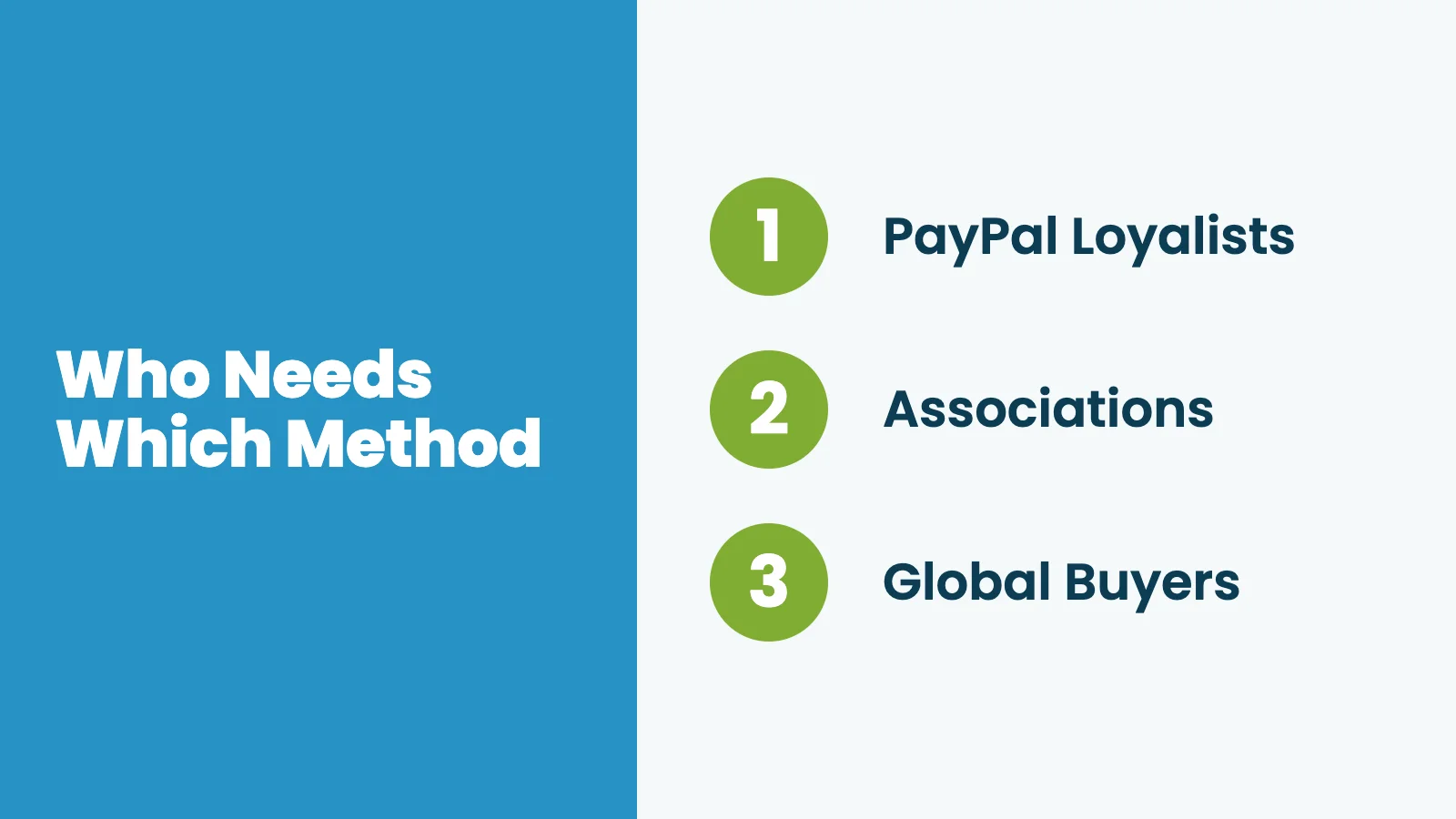
Most members will never touch a second or third payment method, but the one who needs it will leave if it is not there.
Set Up PayPal as a Second Payment OptionThe PayPal Gateway Add On layers PayPal on top of your existing payment gateway. It uses PayPal’s newest payments API: automatic webhook registration, and live and sandbox credentials from a single settings screen.
Before you startYou will need:
In your WordPress admin, navigate to Memberships > Add Ons. Search for “PayPal Gateway” and click Install Now, then Activate.
Navigate to developer.paypal.com and log in with your PayPal account.
Open the Developer Dashboard, toggle to Sandbox in the top left, and select Apps & Credentials.
Click Create App (or use the default app if one exists), then copy the Client ID and Client Secret from the app detail page.
Repeat under Live when you are ready to go live.
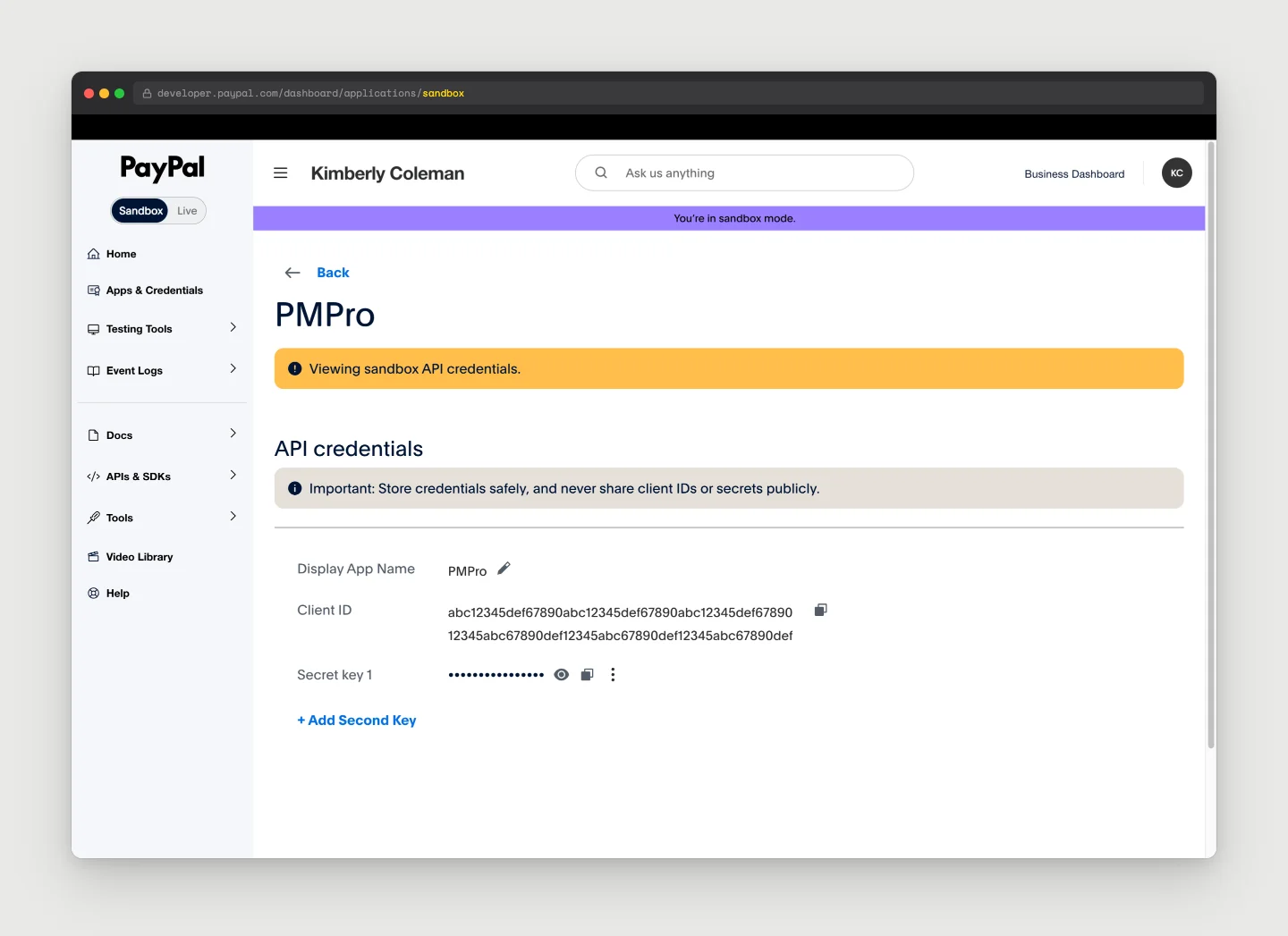 Copy the Client ID and Client Secret from your app’s detail page in the PayPal Developer Dashboard.
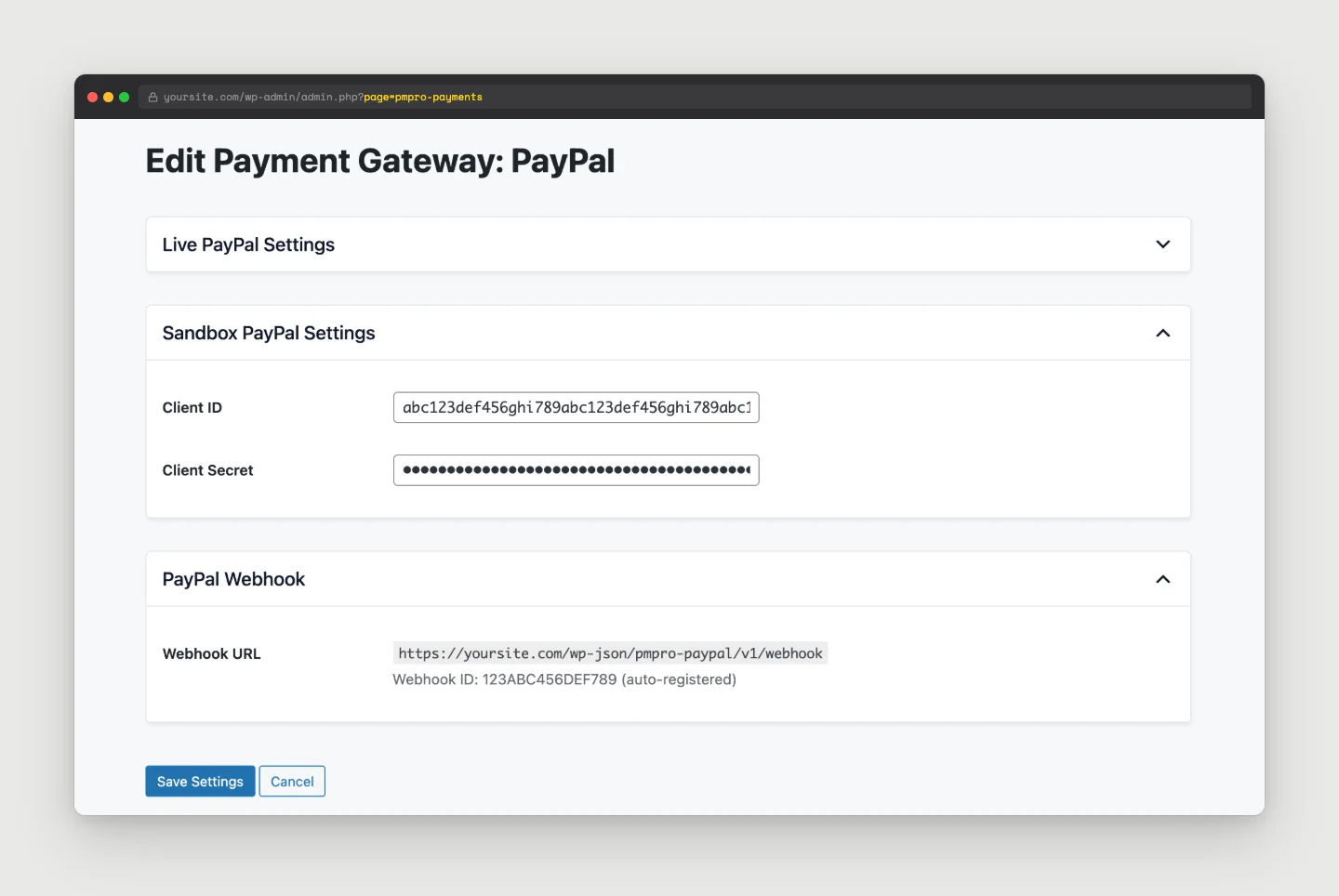 Paste your Client ID and Client Secret into the matching Sandbox or Live section. The webhook registers itself once you save.
Confirm the checkout shows the option. Open your membership checkout page in an incognito window and click through to the Check Out with PayPal button.
Run a test purchase in Sandbox. Use PayPal’s Card Testing tool to generate a test card number, or create a sandbox buyer account under Sandbox > Accounts in the Developer Dashboard. Confirm the member lands back on your site, membership access activates (this can take a few seconds up to a couple of minutes while PayPal’s webhook confirms the payment), and the order shows up correctly in Memberships > Orders.
Set Up Pay by Check for Offline and Invoice PaymentsThe Pay by Check Add On, officially “Pay by Check: Manual and Offline Payments,” adds a manual option to checkout. The label says “Pay by Check,” but the Gateway Label is editable, so sites use it for a mailed check, Venmo, a bank transfer, cash, or an invoice handled outside the site. The member completes registration and you confirm payment separately.
This is the path most associations, training organizations, and B2B membership sites need.
Before you startYou will need:
Navigate to Memberships > Add Ons, search for “Pay by Check,” and click Install Now, then Activate.
Navigate to Memberships > Settings > Payments.
In Global Settings, select Pay by Check as the Payment Gateway, choose whether the Gateway Environment is Live/Production or Sandbox/Testing, and click Save All Settings.
Scroll down and click Edit Settings for Check (Pay by Check).
Adjust the Gateway Label if you want something other than “Check” (for example, “Venmo” or “Direct Deposit”), then fill in the Instructions field with what you want the member to see and receive by email: your mailing address, a Venmo username, a bank routing/account number, or a note that you will invoice them separately. Save.
You can leave Pay by Check as the site’s only payment gateway, or go back to Memberships > Settings > Payments and select a different gateway (like Stripe) as primary. The Pay by Check settings stay saved in the background either way, so it still appears as an option at checkout.
Set the level-by-level rules. Navigate to Memberships > Levels, edit a level, and find the Pay by Check/Manual Settings section.
Set Allow Pay by Check/Manual to only, optional, or required for that level, and set Send Renewal Emails, Send Reminder Emails, and Cancel Membership (days after a missed payment) to match your policy. Repeat for each level that should offer this option.
Save and verify. Open the checkout page in an incognito window. You should see the new option in the payment method selector. Run a test signup with it to confirm the confirmation page and email both show your instructions.
A member who selects the manual payment option skips the credit card fields entirely. They land on a confirmation page showing your instructions (“Make checks payable to…”, “Mail to…”, etc.) and get a confirmation email with the same instructions. Their order is created with status Pending, and depending on the level’s Allow Pay by Check/Manual setting, their membership access may be held until you confirm payment.
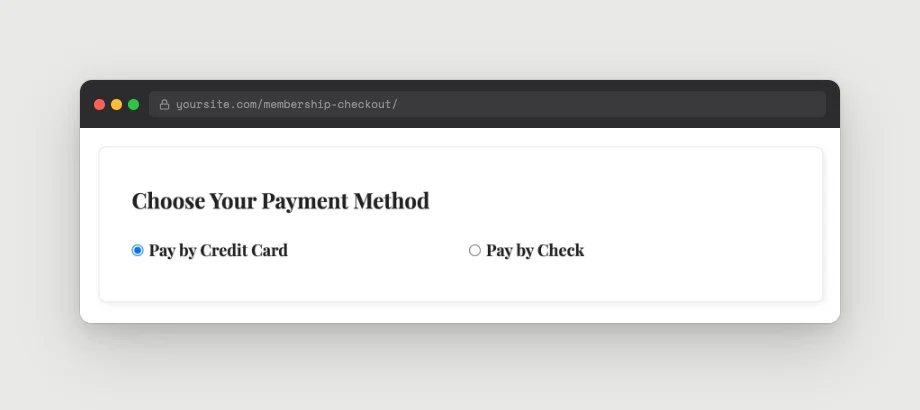 The payment method selector a member sees when Pay by Check is active alongside a primary gateway.
You decide how to handle the rest. When the check clears (or the invoice is paid), go to Memberships > Orders and mark the order paid. There are a few ways to do this: a quick action right from the Orders list, a button on the order’s edit page, or by editing the order’s status directly on that page. PMPro then activates the membership fully and sends the standard welcome email.
What Checkout Looks Like With All Three Methods ActiveWhen both Add Ons are installed and configured alongside your primary gateway, your checkout page presents the member with a single payment-method selector near the top of the form. Three options:
Most members will choose the default and never think about the others. That is the point. The two extra options are there for the members who do think about it.
A few admin things to know about the combined view:
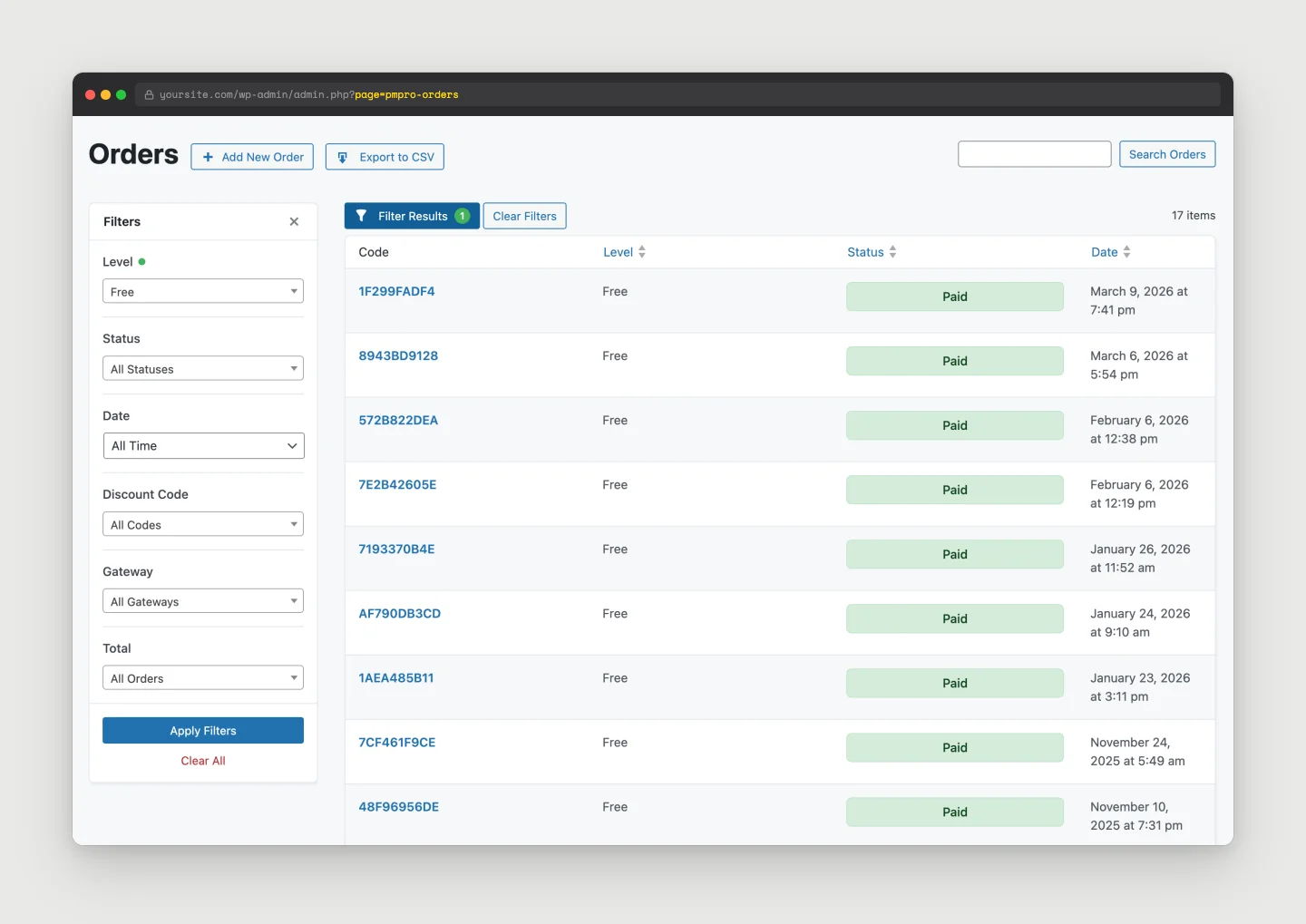 Filter the Orders list by Gateway to see how each payment method is performing.Things to Know Before You Turn It All On
A short, honest list of edge cases for each method. None of these are deal-breakers, but they will save you a confused support ticket later.
PayPalThe best version of this change is undramatic. You install two Add Ons, paste in a few credentials, write a paragraph of payment instructions, and your checkout quietly grows two new options. Members who would have left now stay.
Install the PayPal Gateway Add On and the Pay by Check Add On, configure them with the steps above, and run a test purchase on each method. Then check Memberships > Orders in a month and look at the payment method breakdown. That is the number that tells you whether this was worth the afternoon.
If you run into a snag during setup or want a second set of eyes on your configuration, post on the members support forum. We are happy to help.
Author: Sam Daugherty
Sam Daugherty is the Sales and Marketing Manager at Paid Memberships Pro. Sam oversees content marketing, social media management, community engagement, and event management, all while ensuring that documentation is clear and up-to-date for users.
She values the supportive team environment at Paid Memberships Pro and appreciates the company’s commitment to work-life balance, where "being human first" is a guiding principle.
Outside of work, Sam finds joy in creative hobbies like quilting. She’s also an avid reader. Sam loves spending quality time with her dog. Family time is also a priority for her, and she believes in making the most of moments spent with loved ones.
Was this article helpful?
YesNo
| # | Наименование новости | Тональность | Информативность | Дата публикации |
|---|---|---|---|---|
| 1 | The future of consumer payments: Cards, Pay by Bank & the evolution of the multi-rail bank | 0 | 5.96 | 17-09-2026 |
| 2 | How to Start an Online Magazine with WordPress and Paid Memberships Pro | 0 | 8.05 | 11-09-2026 |
| 3 | Import User Meta Fields Stored as an Array via CSV | 0 | 11.81 | 15-09-2026 |
| 4 | Доля платежей через Tinkoff Pay среди клиентов банка на сайтах достигла 39% | 0 | 0 | 16-03-2023 |
| 5 | Coupons, Discounts, and Promotions: Best Practice and Trends | 0 | 7.49 | 17-09-2026 |
| 6 | Offer Members a Discounted Rate for Upgrading to a Higher Level | 0 | 6.53 | 16-09-2026 |
| 7 | В России выросла популярность альтернативных способов оплаты покупок | 1 | 12.66 | 26-07-2026 |
| 8 | Secure Your Member Map With a Private Geocoding API Key | 0 | 6.33 | 17-09-2026 |
| 9 | The role of biometrics in enhancing payment security | 0 | 9.11 | 10-08-2026 |
| 10 | "Сбер": ежемесячный оборот альтернативных методов оплаты превысил 1 трлн рублей | 0 | 0 | 30-07-2025 |
